Inviting us to Xero
We encourage our clients to subscribe and manage their own Xero files so they remain in control. But we're here to help and part of that requires access and permissions in Xero. Here's how to get us connected.
Log in, and go to Settings
Open your Xero file, then click on your organisation name, then select Settings from the drop-down.

Open the Users settings
Users is usually the second option you will see:

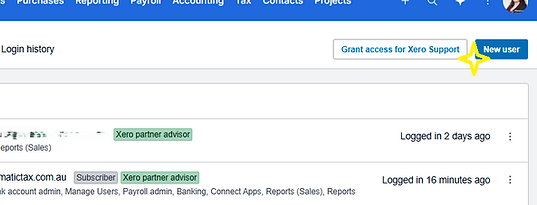
Add a User
The New User button is on the far right.
The process so far is the same if you need to add an employee or business partner to your file.
Enter our Details
Helen Bell - info@chromatictax.com.au
There may be other Chromatic staff we allocate to assisting in your file, but Helen is across all our clients.
Please ensure you select the Administrator role so that we can assist you fully.
If you prefer you can open the Settings permissions and remove the Users feature, but we won't add our team members without discussing with you first.

Send Invite!
The Send Invite button is at the bottom right. We should have an email straight away with a link to accept access to your file.
You'll be returned to the list of users, and should see the new Pending user at the top of the list. You can go to New User from here and invite anyone else you need.

These instructions are based on Add-a-new-user-to-your-organisation from Xero Central, and correct as at 4 October 2026.